> ## Documentation Index
> Fetch the complete documentation index at: https://hyperbrowser.ai/docs/llms.txt
> Use this file to discover all available pages before exploring further.
# macOS (Beta)
> Create macOS sandboxes with a live desktop and persistent disks using the API or CLI.
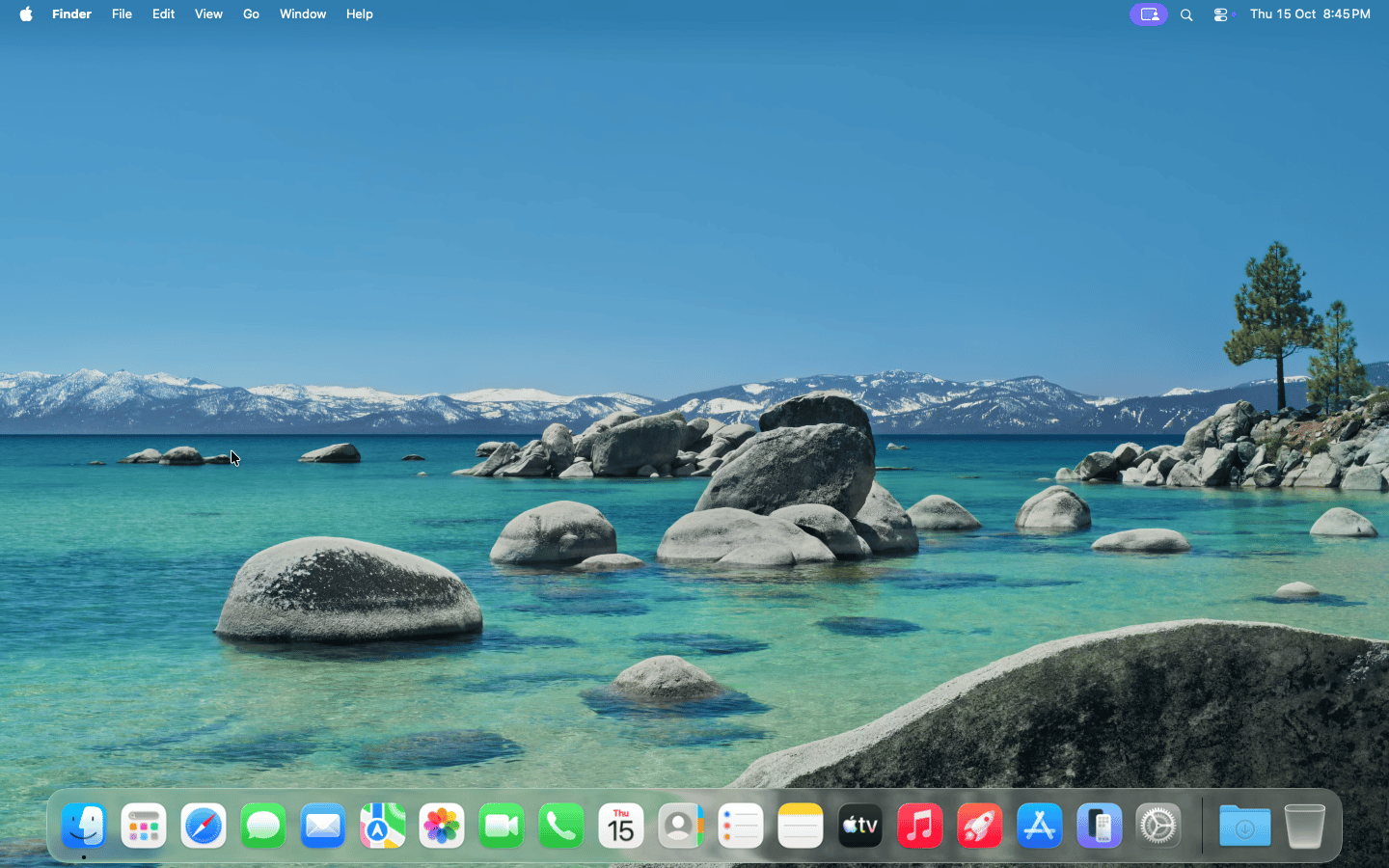
Run macOS applications and automate a Mac desktop in an isolated Apple silicon virtual machine. Use the sandbox API or `hx` CLI to create a Mac, run commands, and return to the same disk later.
**macOS sandboxes are in beta.** Reach out to us at [info@hyperbrowser.ai](mailto:info@hyperbrowser.ai) or through support chat to enable them for your team.
 ## Before you start
Once macOS access is enabled, configure your [API key or CLI profile](/docs/sandboxes/install). The cURL examples below use the `HYPERBROWSER_API_KEY` environment variable. Use the latest CLI for the `--macos` flag and disk commands.
## Create a Mac sandbox
Create a sandbox with 8 vCPUs, 8 GiB of memory, and a one-hour lifetime:
```bash cURL theme={null}
curl --fail-with-body --max-time 360 \
-X POST https://api.hyperbrowser.ai/api/sandbox \
-H "x-api-key: $HYPERBROWSER_API_KEY" \
-H "Content-Type: application/json" \
-d '{
"runtimeClass": "macos",
"imageName": "macos-base",
"region": "us",
"vcpus": 8,
"memMiB": 8192,
"timeoutMinutes": 60
}'
```
```bash CLI theme={null}
hx vm create macos-base --macos --region us \
--cpu 8 --memory 8g --timeout-minutes 60
```
`runtimeClass: "macos"` selects a Mac. Ordinary sandbox requests default to Linux (`firecracker`); an image name alone does not select macOS.
Creating from `macos-base` gives you a new writable disk. The default image stays read-only. Each create request using `imageName` creates a separate disk; use `diskId` to return to an existing one.
Mac startup can take several minutes. Allow up to six minutes for the create request; the CLI already uses this timeout. If the response has `ready: false`, fetch `GET /api/sandbox/{id}` until it reports `ready: true` before sending runtime commands. Check `status` as well, and stop polling if the sandbox has ended or failed.
Save these fields from the response:
| Field | Use |
| - | - |
| `id` | Run commands, open the desktop, or stop this sandbox. |
| `diskId` | Boot the same disk in a new sandbox after stopping. |
| `sessionUrl` | Open the sandbox in the Hyperbrowser dashboard. |
| `runtime.baseUrl` | Send commands and other runtime requests. |
| `token` | Authenticate runtime requests with `Authorization: Bearer`. |
CPU and memory default to the source disk's settings when omitted. macOS requires at least 2 vCPUs and 4 GiB of memory, with memory in whole GiB increments. Available sizes depend on your plan and host capacity. Leave `diskSizeMiB` unset to use the source disk's size; resizing is not supported.
## Run commands
Use the same [runtime API](/docs/sandboxes/runtime), [file operations](/docs/sandboxes/filesystem/overview), and [terminal](/docs/sandboxes/terminal) as other sandboxes. Set `SANDBOX_ID`, `RUNTIME_BASE_URL`, and `SANDBOX_TOKEN` from the create response for the examples below.
```bash CLI theme={null}
hx vm exec "$SANDBOX_ID" 'uname -s'
```
```bash cURL theme={null}
curl --fail-with-body "$RUNTIME_BASE_URL/exec" \
-H "Authorization: Bearer $SANDBOX_TOKEN" \
-H "Content-Type: application/json" \
-d '{"command":"uname -s"}'
```
The command returns `Darwin`. Your workload runs on macOS with an ARM64 CPU, so use macOS-compatible tools and binaries.
## View and share the desktop
Open `sessionUrl` and select **Desktop** to use the Mac in your dashboard. To share the desktop directly, expose its VNC web viewer on port `6080`:
```bash CLI theme={null}
hx vm expose "$SANDBOX_ID" --port 6080 --auth
```
```bash cURL theme={null}
curl --fail-with-body \
-X POST "https://api.hyperbrowser.ai/api/sandbox/$SANDBOX_ID/expose" \
-H "x-api-key: $HYPERBROWSER_API_KEY" \
-H "Content-Type: application/json" \
-d '{"port":6080,"auth":true}'
```
Share the **Browser URL** from the CLI, or `browserUrl` from the API. It carries an access token, so the recipient does not need a dashboard login. The response includes `browserUrlExpiresAt`; generate a new link when it expires. The sandbox must remain running.
For a public desktop without authentication, use `--port 6080:public` instead of `--port 6080 --auth`, or set `"auth": false` in the API request. Share the returned `url`.
Desktop links allow both viewing and control. Anyone with an authenticated link can use it until it expires; a public desktop is accessible to anyone who can reach its URL.
You can also expose the desktop at creation time by adding `"exposedPorts": [{"port": 6080, "auth": true}]` to the create request, or `--port 6080:auth` to the CLI command. The create response includes the link in `exposedPorts`.
To capture a desktop recording, add `"enableRecording": true` when creating the sandbox, or use `--enable-recording` in the CLI. View it in the dashboard's **Recording** tab.
## Stop and reuse the disk
Stopping a Mac sandbox saves its disk changes and releases the VM. It preserves files and installed applications, but does not preserve running processes or memory.
```bash CLI theme={null}
hx vm stop "$SANDBOX_ID"
```
```bash cURL theme={null}
curl --fail-with-body -X PUT \
"https://api.hyperbrowser.ai/api/sandbox/$SANDBOX_ID/stop" \
-H "x-api-key: $HYPERBROWSER_API_KEY"
```
Saving finishes asynchronously. Set `DISK_ID` to the `diskId` from the create response, then check the disk before reusing it:
```bash CLI theme={null}
hx vm disks get "$DISK_ID"
```
```bash cURL theme={null}
curl --fail-with-body "https://api.hyperbrowser.ai/api/disks/$DISK_ID" \
-H "x-api-key: $HYPERBROWSER_API_KEY"
```
Once `status` is `ready` and `attachedSessionId` is `null`, start a new sandbox with that disk:
```bash CLI theme={null}
hx vm create --disk-id "$DISK_ID" --region us \
--cpu 8 --memory 8g --timeout-minutes 60
```
```bash cURL theme={null}
curl --fail-with-body --max-time 360 \
-X POST https://api.hyperbrowser.ai/api/sandbox \
-H "x-api-key: $HYPERBROWSER_API_KEY" \
-H "Content-Type: application/json" \
-d "{
\"runtimeClass\": \"macos\",
\"diskId\": \"$DISK_ID\",
\"region\": \"us\",
\"vcpus\": 8,
\"memMiB\": 8192,
\"timeoutMinutes\": 60
}"
```
The new sandbox has a new `id` and uses the same `diskId`. A disk can be attached to only one sandbox at a time. It remains stored after the sandbox stops; delete an unused, detached disk with `hx vm disks delete "$DISK_ID"` or `DELETE /api/disks/{id}` when you no longer need its data.
## Beta availability and limits
* macOS access must be enabled for your team. Use `region: "us"` for the current beta.
* Memory snapshots, shared volume mounts, and GPU options are not supported. Use persistent disks to retain your work between Mac sessions.
* macOS outbound network rules accept IPv4 addresses and CIDRs. Domain and wildcard-domain rules are not supported.
* If creation returns `429`, available Mac capacity or a quota may have been reached. Check the error message before retrying.
See the [create-sandbox API reference](/docs/api-reference/create-new-sandbox) for request fields shared with other sandboxes.
This documentation is built and hosted on [Mintlify](https://mintlify.com), a developer documentation platform.
## Before you start
Once macOS access is enabled, configure your [API key or CLI profile](/docs/sandboxes/install). The cURL examples below use the `HYPERBROWSER_API_KEY` environment variable. Use the latest CLI for the `--macos` flag and disk commands.
## Create a Mac sandbox
Create a sandbox with 8 vCPUs, 8 GiB of memory, and a one-hour lifetime:
```bash cURL theme={null}
curl --fail-with-body --max-time 360 \
-X POST https://api.hyperbrowser.ai/api/sandbox \
-H "x-api-key: $HYPERBROWSER_API_KEY" \
-H "Content-Type: application/json" \
-d '{
"runtimeClass": "macos",
"imageName": "macos-base",
"region": "us",
"vcpus": 8,
"memMiB": 8192,
"timeoutMinutes": 60
}'
```
```bash CLI theme={null}
hx vm create macos-base --macos --region us \
--cpu 8 --memory 8g --timeout-minutes 60
```
`runtimeClass: "macos"` selects a Mac. Ordinary sandbox requests default to Linux (`firecracker`); an image name alone does not select macOS.
Creating from `macos-base` gives you a new writable disk. The default image stays read-only. Each create request using `imageName` creates a separate disk; use `diskId` to return to an existing one.
Mac startup can take several minutes. Allow up to six minutes for the create request; the CLI already uses this timeout. If the response has `ready: false`, fetch `GET /api/sandbox/{id}` until it reports `ready: true` before sending runtime commands. Check `status` as well, and stop polling if the sandbox has ended or failed.
Save these fields from the response:
| Field | Use |
| - | - |
| `id` | Run commands, open the desktop, or stop this sandbox. |
| `diskId` | Boot the same disk in a new sandbox after stopping. |
| `sessionUrl` | Open the sandbox in the Hyperbrowser dashboard. |
| `runtime.baseUrl` | Send commands and other runtime requests. |
| `token` | Authenticate runtime requests with `Authorization: Bearer`. |
CPU and memory default to the source disk's settings when omitted. macOS requires at least 2 vCPUs and 4 GiB of memory, with memory in whole GiB increments. Available sizes depend on your plan and host capacity. Leave `diskSizeMiB` unset to use the source disk's size; resizing is not supported.
## Run commands
Use the same [runtime API](/docs/sandboxes/runtime), [file operations](/docs/sandboxes/filesystem/overview), and [terminal](/docs/sandboxes/terminal) as other sandboxes. Set `SANDBOX_ID`, `RUNTIME_BASE_URL`, and `SANDBOX_TOKEN` from the create response for the examples below.
```bash CLI theme={null}
hx vm exec "$SANDBOX_ID" 'uname -s'
```
```bash cURL theme={null}
curl --fail-with-body "$RUNTIME_BASE_URL/exec" \
-H "Authorization: Bearer $SANDBOX_TOKEN" \
-H "Content-Type: application/json" \
-d '{"command":"uname -s"}'
```
The command returns `Darwin`. Your workload runs on macOS with an ARM64 CPU, so use macOS-compatible tools and binaries.
## View and share the desktop
Open `sessionUrl` and select **Desktop** to use the Mac in your dashboard. To share the desktop directly, expose its VNC web viewer on port `6080`:
```bash CLI theme={null}
hx vm expose "$SANDBOX_ID" --port 6080 --auth
```
```bash cURL theme={null}
curl --fail-with-body \
-X POST "https://api.hyperbrowser.ai/api/sandbox/$SANDBOX_ID/expose" \
-H "x-api-key: $HYPERBROWSER_API_KEY" \
-H "Content-Type: application/json" \
-d '{"port":6080,"auth":true}'
```
Share the **Browser URL** from the CLI, or `browserUrl` from the API. It carries an access token, so the recipient does not need a dashboard login. The response includes `browserUrlExpiresAt`; generate a new link when it expires. The sandbox must remain running.
For a public desktop without authentication, use `--port 6080:public` instead of `--port 6080 --auth`, or set `"auth": false` in the API request. Share the returned `url`.
Desktop links allow both viewing and control. Anyone with an authenticated link can use it until it expires; a public desktop is accessible to anyone who can reach its URL.
You can also expose the desktop at creation time by adding `"exposedPorts": [{"port": 6080, "auth": true}]` to the create request, or `--port 6080:auth` to the CLI command. The create response includes the link in `exposedPorts`.
To capture a desktop recording, add `"enableRecording": true` when creating the sandbox, or use `--enable-recording` in the CLI. View it in the dashboard's **Recording** tab.
## Stop and reuse the disk
Stopping a Mac sandbox saves its disk changes and releases the VM. It preserves files and installed applications, but does not preserve running processes or memory.
```bash CLI theme={null}
hx vm stop "$SANDBOX_ID"
```
```bash cURL theme={null}
curl --fail-with-body -X PUT \
"https://api.hyperbrowser.ai/api/sandbox/$SANDBOX_ID/stop" \
-H "x-api-key: $HYPERBROWSER_API_KEY"
```
Saving finishes asynchronously. Set `DISK_ID` to the `diskId` from the create response, then check the disk before reusing it:
```bash CLI theme={null}
hx vm disks get "$DISK_ID"
```
```bash cURL theme={null}
curl --fail-with-body "https://api.hyperbrowser.ai/api/disks/$DISK_ID" \
-H "x-api-key: $HYPERBROWSER_API_KEY"
```
Once `status` is `ready` and `attachedSessionId` is `null`, start a new sandbox with that disk:
```bash CLI theme={null}
hx vm create --disk-id "$DISK_ID" --region us \
--cpu 8 --memory 8g --timeout-minutes 60
```
```bash cURL theme={null}
curl --fail-with-body --max-time 360 \
-X POST https://api.hyperbrowser.ai/api/sandbox \
-H "x-api-key: $HYPERBROWSER_API_KEY" \
-H "Content-Type: application/json" \
-d "{
\"runtimeClass\": \"macos\",
\"diskId\": \"$DISK_ID\",
\"region\": \"us\",
\"vcpus\": 8,
\"memMiB\": 8192,
\"timeoutMinutes\": 60
}"
```
The new sandbox has a new `id` and uses the same `diskId`. A disk can be attached to only one sandbox at a time. It remains stored after the sandbox stops; delete an unused, detached disk with `hx vm disks delete "$DISK_ID"` or `DELETE /api/disks/{id}` when you no longer need its data.
## Beta availability and limits
* macOS access must be enabled for your team. Use `region: "us"` for the current beta.
* Memory snapshots, shared volume mounts, and GPU options are not supported. Use persistent disks to retain your work between Mac sessions.
* macOS outbound network rules accept IPv4 addresses and CIDRs. Domain and wildcard-domain rules are not supported.
* If creation returns `429`, available Mac capacity or a quota may have been reached. Check the error message before retrying.
See the [create-sandbox API reference](/docs/api-reference/create-new-sandbox) for request fields shared with other sandboxes.
This documentation is built and hosted on [Mintlify](https://mintlify.com), a developer documentation platform.