> ## Documentation Index
> Fetch the complete documentation index at: https://hyperbrowser.ai/docs/llms.txt
> Use this file to discover all available pages before exploring further.
# Live View
> Watch and interact with your browser sessions in real-time
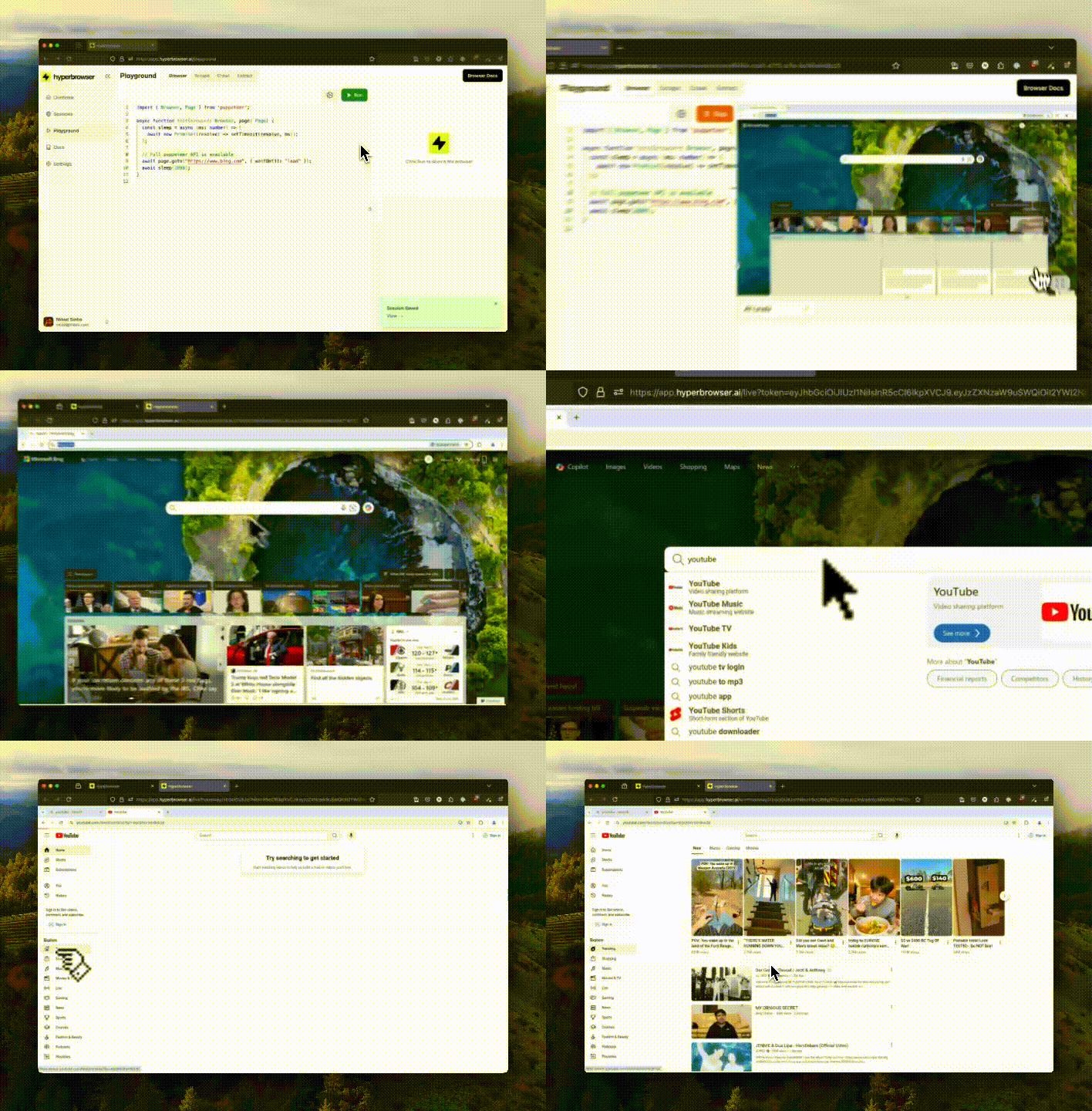 Live View lets you observe your browser sessions in real-time as they execute. This is essential for debugging automation scripts, monitoring long-running tasks, demonstrating workflows, or enabling human-in-the-loop interactions.
## How it Works
Every Hyperbrowser session automatically includes a unique `liveUrl` that streams the browser session in real-time. The URL remains valid as long as the session is active and the embedded authentication token hasn't expired (tokens expire after 12 hours).
When you create or retrieve a session, you'll receive a `liveUrl` that looks like:
```
https://app.hyperbrowser.ai/live?token=
```
You can open this URL in any modern browser to watch the session live, or embed it in your application.
## Getting the Live URL
```typescript Node.js theme={null}
import { Hyperbrowser } from "@hyperbrowser/sdk";
const client = new Hyperbrowser({
apiKey: process.env.HYPERBROWSER_API_KEY,
});
const session = await client.sessions.create();
// Access the Live View URL
console.log("Live View:", session.liveUrl);
console.log("Share this URL to let others watch in real-time");
```
```python Python theme={null}
from hyperbrowser import Hyperbrowser
import os
client = Hyperbrowser(api_key=os.environ["HYPERBROWSER_API_KEY"])
session = client.sessions.create()
# Access the Live View URL
print("Live View:", session.live_url)
print("Share this URL to let others watch in real-time")
```
```bash cURL theme={null}
curl -X POST https://api.hyperbrowser.ai/api/session \
-H "x-api-key: YOUR_API_KEY" \
-H "Content-Type: application/json" \
-d '{}'
```
## Embedding Live View
You can embed Live View directly into your application using an iframe. This is useful for creating custom monitoring dashboards or providing seamless live views to end-users:
```html theme={null}
```
## Securing Live View
Live View URLs are secured with authentication and encryption. Only users with the correct URL can access the Live View.
Anyone with the URL can view (and potentially interact with) the session. Be sure to protect Live View URLs as sensitive secrets, especially if you're embedding them in a public web page.
**Token Expiration:** The token in the `liveUrl` will expire after 12 hours. To get a refreshed token, simply call the GET request for the session which will return a new `liveUrl` with an updated token.
```typescript Node.js theme={null}
// Get a fresh Live View URL
const session = await client.sessions.get("session-id");
console.log("Refreshed Live View:", session.liveUrl);
```
```python Python theme={null}
# Get a fresh Live View URL
session = client.sessions.get("session-id")
print("Refreshed Live View:", session.live_url)
```
```bash cURL theme={null}
curl https://api.hyperbrowser.ai/api/session/SESSION_ID \
-H "x-api-key: YOUR_API_KEY"
```
## Disabling Live View Interactions
By default, Live View allows users to interact with the session. To disable this, you can set the `viewOnlyLiveView` parameter to `true` when creating the session. This will make the Live View read-only and prevent users from interacting with the session.
```typescript Node.js theme={null}
import { Hyperbrowser } from "@hyperbrowser/sdk";
const client = new Hyperbrowser({
apiKey: process.env.HYPERBROWSER_API_KEY,
});
const session = await client.sessions.create({
viewOnlyLiveView: true,
});
// Access the Live View URL
console.log("Live View:", session.liveUrl);
console.log("Share this URL to let others watch in real-time");
```
```python Python 1.0+ theme={null}
from hyperbrowser import Hyperbrowser
import os
client = Hyperbrowser(api_key=os.environ["HYPERBROWSER_API_KEY"])
session = client.sessions.create(
params={
"view_only_live_view": True,
}
)
# Access the Live View URL
print("Live View:", session.live_url)
print("Share this URL to let others watch in real-time")
```
```python Python (legacy) theme={null}
from hyperbrowser import Hyperbrowser
from hyperbrowser.models import CreateSessionParams
import os
client = Hyperbrowser(api_key=os.environ["HYPERBROWSER_API_KEY"])
session = client.sessions.create(
params=CreateSessionParams(
view_only_live_view=True,
)
)
# Access the Live View URL
print("Live View:", session.live_url)
print("Share this URL to let others watch in real-time")
```
```bash cURL theme={null}
curl -X POST https://api.hyperbrowser.ai/api/session \
-H "x-api-key: YOUR_API_KEY" \
-H "Content-Type: application/json" \
-d '{"viewOnlyLiveView": true}'
```
## Next Steps
Record and replay browser sessions
Manage session lifecycle and cleanup
Persist browser state across sessions
Retrieve files from sessions
Live View lets you observe your browser sessions in real-time as they execute. This is essential for debugging automation scripts, monitoring long-running tasks, demonstrating workflows, or enabling human-in-the-loop interactions.
## How it Works
Every Hyperbrowser session automatically includes a unique `liveUrl` that streams the browser session in real-time. The URL remains valid as long as the session is active and the embedded authentication token hasn't expired (tokens expire after 12 hours).
When you create or retrieve a session, you'll receive a `liveUrl` that looks like:
```
https://app.hyperbrowser.ai/live?token=
```
You can open this URL in any modern browser to watch the session live, or embed it in your application.
## Getting the Live URL
```typescript Node.js theme={null}
import { Hyperbrowser } from "@hyperbrowser/sdk";
const client = new Hyperbrowser({
apiKey: process.env.HYPERBROWSER_API_KEY,
});
const session = await client.sessions.create();
// Access the Live View URL
console.log("Live View:", session.liveUrl);
console.log("Share this URL to let others watch in real-time");
```
```python Python theme={null}
from hyperbrowser import Hyperbrowser
import os
client = Hyperbrowser(api_key=os.environ["HYPERBROWSER_API_KEY"])
session = client.sessions.create()
# Access the Live View URL
print("Live View:", session.live_url)
print("Share this URL to let others watch in real-time")
```
```bash cURL theme={null}
curl -X POST https://api.hyperbrowser.ai/api/session \
-H "x-api-key: YOUR_API_KEY" \
-H "Content-Type: application/json" \
-d '{}'
```
## Embedding Live View
You can embed Live View directly into your application using an iframe. This is useful for creating custom monitoring dashboards or providing seamless live views to end-users:
```html theme={null}
```
## Securing Live View
Live View URLs are secured with authentication and encryption. Only users with the correct URL can access the Live View.
Anyone with the URL can view (and potentially interact with) the session. Be sure to protect Live View URLs as sensitive secrets, especially if you're embedding them in a public web page.
**Token Expiration:** The token in the `liveUrl` will expire after 12 hours. To get a refreshed token, simply call the GET request for the session which will return a new `liveUrl` with an updated token.
```typescript Node.js theme={null}
// Get a fresh Live View URL
const session = await client.sessions.get("session-id");
console.log("Refreshed Live View:", session.liveUrl);
```
```python Python theme={null}
# Get a fresh Live View URL
session = client.sessions.get("session-id")
print("Refreshed Live View:", session.live_url)
```
```bash cURL theme={null}
curl https://api.hyperbrowser.ai/api/session/SESSION_ID \
-H "x-api-key: YOUR_API_KEY"
```
## Disabling Live View Interactions
By default, Live View allows users to interact with the session. To disable this, you can set the `viewOnlyLiveView` parameter to `true` when creating the session. This will make the Live View read-only and prevent users from interacting with the session.
```typescript Node.js theme={null}
import { Hyperbrowser } from "@hyperbrowser/sdk";
const client = new Hyperbrowser({
apiKey: process.env.HYPERBROWSER_API_KEY,
});
const session = await client.sessions.create({
viewOnlyLiveView: true,
});
// Access the Live View URL
console.log("Live View:", session.liveUrl);
console.log("Share this URL to let others watch in real-time");
```
```python Python 1.0+ theme={null}
from hyperbrowser import Hyperbrowser
import os
client = Hyperbrowser(api_key=os.environ["HYPERBROWSER_API_KEY"])
session = client.sessions.create(
params={
"view_only_live_view": True,
}
)
# Access the Live View URL
print("Live View:", session.live_url)
print("Share this URL to let others watch in real-time")
```
```python Python (legacy) theme={null}
from hyperbrowser import Hyperbrowser
from hyperbrowser.models import CreateSessionParams
import os
client = Hyperbrowser(api_key=os.environ["HYPERBROWSER_API_KEY"])
session = client.sessions.create(
params=CreateSessionParams(
view_only_live_view=True,
)
)
# Access the Live View URL
print("Live View:", session.live_url)
print("Share this URL to let others watch in real-time")
```
```bash cURL theme={null}
curl -X POST https://api.hyperbrowser.ai/api/session \
-H "x-api-key: YOUR_API_KEY" \
-H "Content-Type: application/json" \
-d '{"viewOnlyLiveView": true}'
```
## Next Steps
Record and replay browser sessions
Manage session lifecycle and cleanup
Persist browser state across sessions
Retrieve files from sessions