

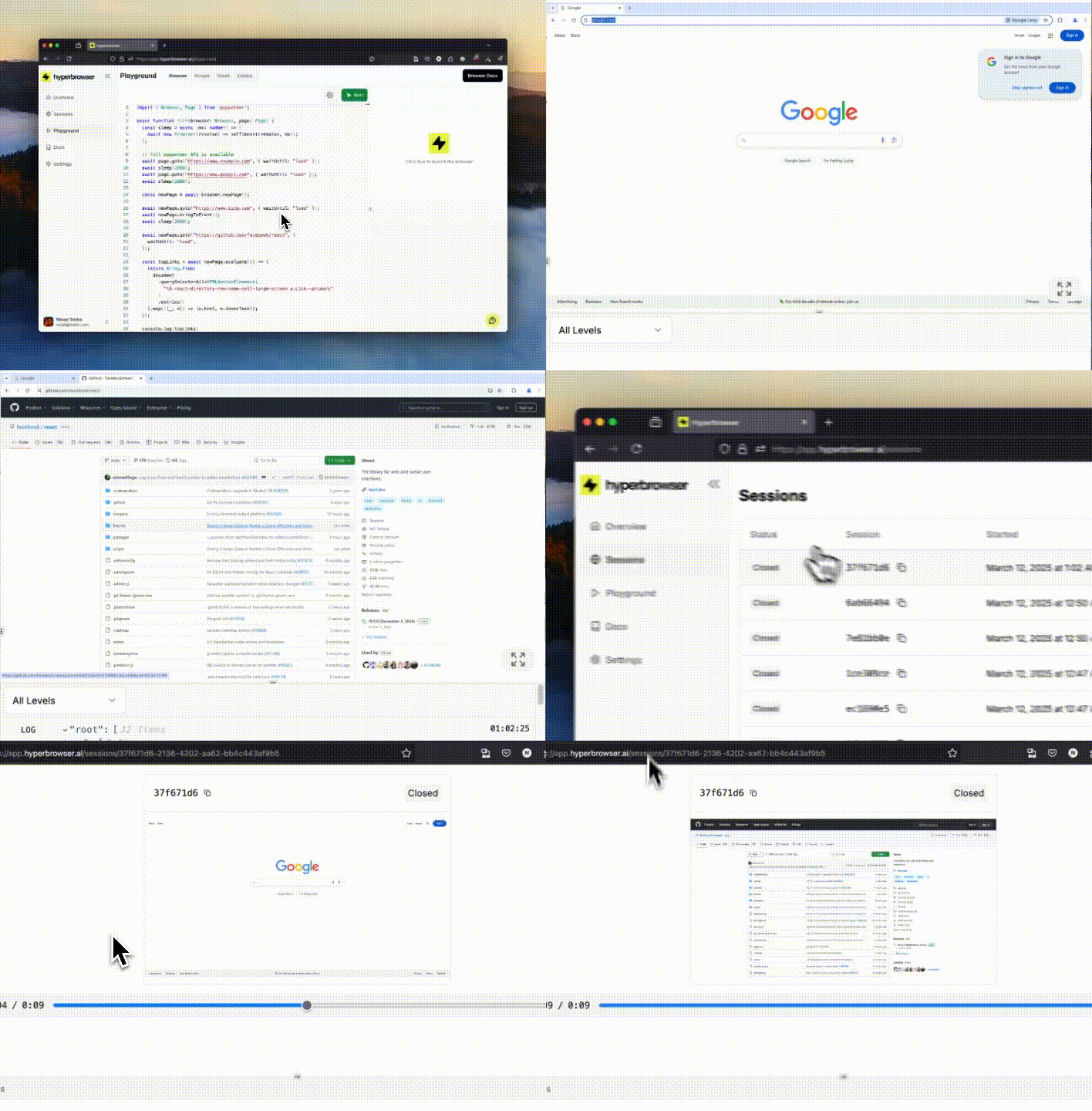
Recording Types
Hyperbrowser supports two types of recordings:- Web Recording (rrweb): Captures DOM changes, interactions, and network requests in a lightweight JSON format that can be replayed with the rrweb player
- Video Recording (MP4): Records the session as a standard video file for easy sharing and viewing
Enabling Session Recording
To record a session, setenableWebRecording to true when creating a new session. This will record all browser interactions, DOM changes, and network requests for the duration of the session.
The rrweb session recording is enabled by default, so you don’t need to explicitly set the
enableWebRecording/enable_web_recording parameter to true/True.Enabling Video Recording
To create a video screen recording (MP4 format), set bothenableWebRecording and enableVideoWebRecording to true. Both must be set to true/True.
enableWebRecording must be true for video recording to work.Retrieving Recordings
To retrieve a recording, you need to:- Note the session
idwhen you create the session - Ensure the session has been stopped before fetching the recording
- Poll the recording URL endpoint until the status is
completedorfailed
Get Web Recording URL
Retrieve the URL for the rrweb recording:Get Video Recording URL
Retrieve the URL for the video recording (MP4):Response Format
Both recording endpoints return the same response structure:not_enabled- Recording was not enabled for this sessionpending- Recording is queued for processingin_progress- Recording is being processedcompleted- Recording is ready (checkrecordingUrl)failed- Recording failed (checkerrorfor details)
Replaying rrweb Recordings
Using the rrweb Player
Once you have the recording data, you can replay it using rrweb’s player:Building a Custom Player
You can also use rrweb’s APIs to build your own playback UI. Refer to the rrweb documentation for details on customizing the Replayer.Complete Example
Here’s a full workflow that creates a session, performs automation, and retrieves the recording:Storage and Retention
Session recordings are stored securely in Hyperbrowser’s cloud infrastructure. Recordings are retained according to your plan’s data retention policy.Limitations
- Session recordings capture only the visual state of the page. They do not include server-side logs, database changes, or other non-DOM modifications.
- Recordings may not perfectly reproduce complex WebGL or canvas-based animations.
Best Practices
- Always enable recordings for debugging: Recordings are invaluable when troubleshooting automation failures
- Poll for completion: After stopping a session, poll the recording URL endpoint until the status is
completed - Handle failures gracefully: Check the
errorfield if the status isfailed - Use video recordings for sharing: MP4 videos are easier to share with non-technical stakeholders
Next Steps
Live View
Watch sessions in real-time as they run
Downloads
Save and retrieve files from sessions
Event Logs
Track session events and lifecycle
Dashboard
View all your session recordings